Claude Code Integration
Complete Claude Code setup with all methods, screenshots, and troubleshooting, adapted for OneInfer.
Step 1: Install Claude Code
Recommended Installation Method
Prerequisites:
- Node.js 18 or newer
- For macOS, use
nvmto install Node.js if you hit permission issues. - For Windows, install Git for Windows.
# Install Claude Code
npm install -g @anthropic-ai/claude-code

# Navigate to your project
cd your-project-directory

# Complete
claude
After entering claude, the next screen may ask you to choose terminal text style. You can select any mode (Dark, Light, colorblind-friendly, or ANSI-only), and change it later with /theme.
Let's get started.
Choose the text style that looks best with your terminal
To change this later, run /theme
> 1. Dark mode ✓
2. Light mode
3. Dark mode (colorblind-friendly)
4. Light mode (colorblind-friendly)
5. Dark mode (ANSI colors only)
6. Light mode (ANSI colors only)
Claude Code can be used with your Claude subscription or billed based on API usage through your Console account.
Select login method:
> 1. Claude account with subscription - Pro, Max, Team, or Enterprise
2. Anthropic Console account - API usage billing
3. 3rd-party platform - Amazon Bedrock, Microsoft Foundry, or Vertex AI
If you do not have a Claude Pro plan, continue with an Anthropic Console account. Just register/sign in to Anthropic and close that tab when done. You do not need to enter card details for this step.
Cursor Guided Installation Method
If you use Cursor and are not familiar with npm, paste this prompt in Cursor terminal/chat:
https://docs.anthropic.com/en/docs/claude-code/overview Help me install Claude CodeStep 2: Configure OneInfer
1. Get API Key
Access OneInfer dashboard, create an API key, and keep it ready for configuration.
2. Configure Environment Variables
Method C: Manual Configuration
Edit ~/.claude/settings.json manually and set:
{
  "$schema": "https://json.schemastore.org/claude-code-settings.json",
  "permissions": {
    "defaultMode": "acceptEdits"
  },
  "env": {
    "ANTHROPIC_BASE_URL": "https://api.oneinfer.ai",
    "ANTHROPIC_AUTH_TOKEN": "<ONEINFER_API_KEY>",
    "ANTHROPIC_API_KEY": "<ONEINFER_API_KEY>",
    "ANTHROPIC_MODEL": "Minimax-2.7"
  }
}
Open a new terminal window after changes so Claude Code reloads env settings.
Step 3: Start Claude Code
cd your-project-directory
claude
If prompted with “Do you want to use this API key?”, select Yes. Then grant folder trust permissions.
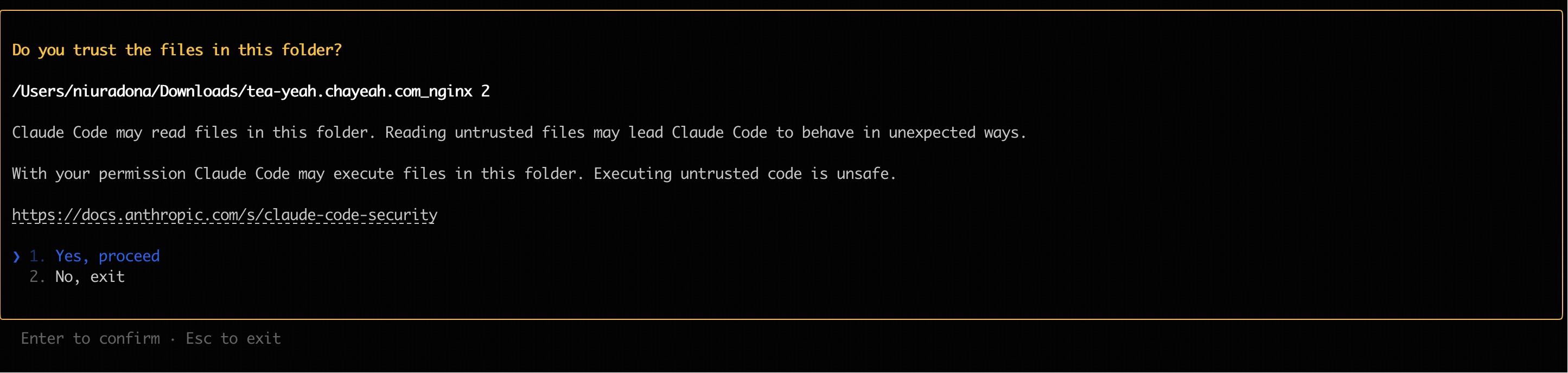
After entering claude, you may see the terminal theme selection screen. You can select any mode (Dark, Light, colorblind-friendly, or ANSI-only), and change it later with /theme.
FAQ & Troubleshooting
How to Switch the Model in Use
You can pin model mappings, but it is usually better to avoid hardcoding so defaults can update automatically.
{
  "env": {
    "ANTHROPIC_DEFAULT_HAIKU_MODEL": "claude-3-5-haiku-latest",
    "ANTHROPIC_DEFAULT_SONNET_MODEL": "claude-sonnet-4-6",
    "ANTHROPIC_DEFAULT_OPUS_MODEL": "claude-opus-4-1"
  }
}claude
/status/status
Settings: Status Config Usage
Auth token: ANTHROPIC_AUTH_TOKEN
Anthropic base URL: https://api.oneinfer.ai
Model: Default
Vision / Search / Reader MCP
You can integrate MCP servers (vision, search, web reader) and use them inside Claude Code once configured.
Manual Configuration Not Working
- Close all Claude Code windows, open a new terminal, and run
claudeagain. - If issue persists, delete
~/.claude/settings.jsonand reconfigure. - Validate JSON in
~/.claude/settings.json(no trailing commas, valid key names). - Environment variables in shell/session may override
settings.json.
Recommended Claude Code Version
# Check current version
claude --version

# Upgrade to latest
claude update